BigBlueButton (BBB) – Video Conferencing
The dBildungscloud integrates BigBlueButton as its video conferencing solution. Teachers can start conferences within courses or board elements, students and external persons can join them. Communication with BBB runs exclusively through the server – the client only manages the lifecycle (create, join, check status) and ultimately redirects to the BBB URL.
Features
- muteOnStart – Moderator can mute all participants when they enter
- everybodyJoinsAsModerator – Moderator can grant moderator rights to all participants
- Waiting Room (moderatorMustApproveJoinRequests) – Participants must be approved by a moderator before joining the conference
- External Persons – Can participate in conferences, but only when the waiting room is enabled (see Access Logic for External Persons)
Where is BBB integrated?
BBB can be used in different contexts ("scopes"):
| Scope | Description | Entry Point |
|---|---|---|
course | Video conference within a course room | RoomVideoConferenceSection.vue |
video-conference-element | Video conference as a board element (column board) | VideoConferenceContentElement.vue |
room | Room (available in API) | – |
event | Calendar event (available in API) | – |
For extensions: If BBB needs to be integrated in a new context, the existing composable
useVideoConference(scope, scopeId)can be reused – it is scope-agnostic.
Board-Element Integration
The board element (VideoConferenceContentElement.vue) is the primary integration point. Key behaviors:
- Opens BBB in a new tab (
_blank) - Prefetches the join URL on mount when a conference is already running – for faster join experience
- Start permission is controlled via
allowedOperations.manageVideoConference(board-specific) - Join permission is role-based: Student, Teacher, or External Person with waiting room active
- Requires both
FEATURE_VIDEOCONFERENCE_ENABLEDandFEATURE_COLUMN_BOARD_VIDEOCONFERENCE_ENABLED, plus the server-side board feature flag
Note: BBB is also still used in the legacy course-room context (
RoomVideoConferenceSection.vue), which opens BBB in the same tab and usesPermission.START_MEETING/Permission.JOIN_MEETINGdirectly.
Access Logic for External Persons
External persons may only join a BBB conference under certain conditions. The client-side logic:
canJoin = canJoinMeeting && (!isExternalPerson || userRoles.length > 1 || isWaitingRoomActive)
This means: An external person can only join if:
- the waiting room is enabled (so the moderator can manually approve them), or
- the person has additional roles (i.e. is not solely
EXTERNAL_PERSON)
Architecture Overview
Overview
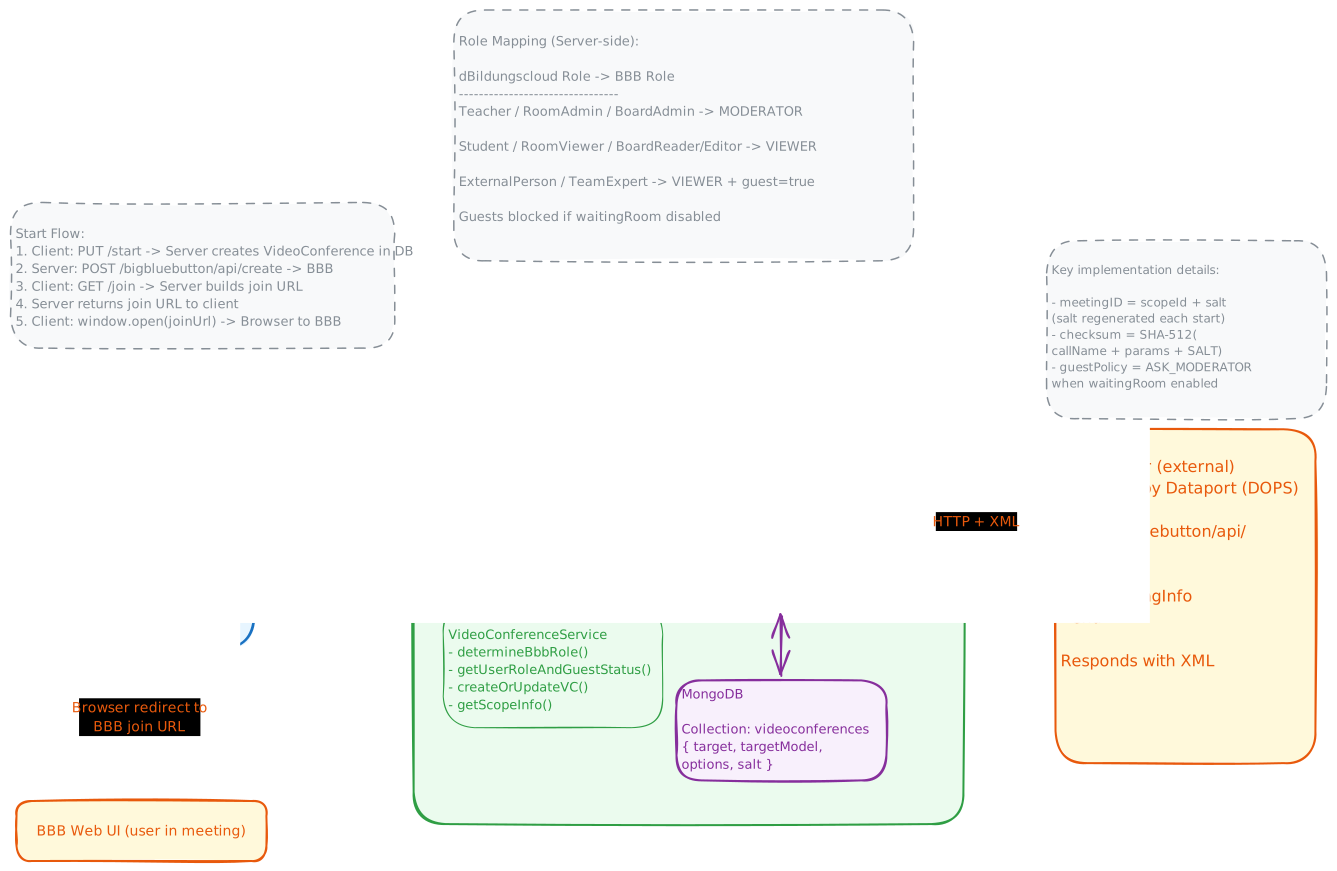
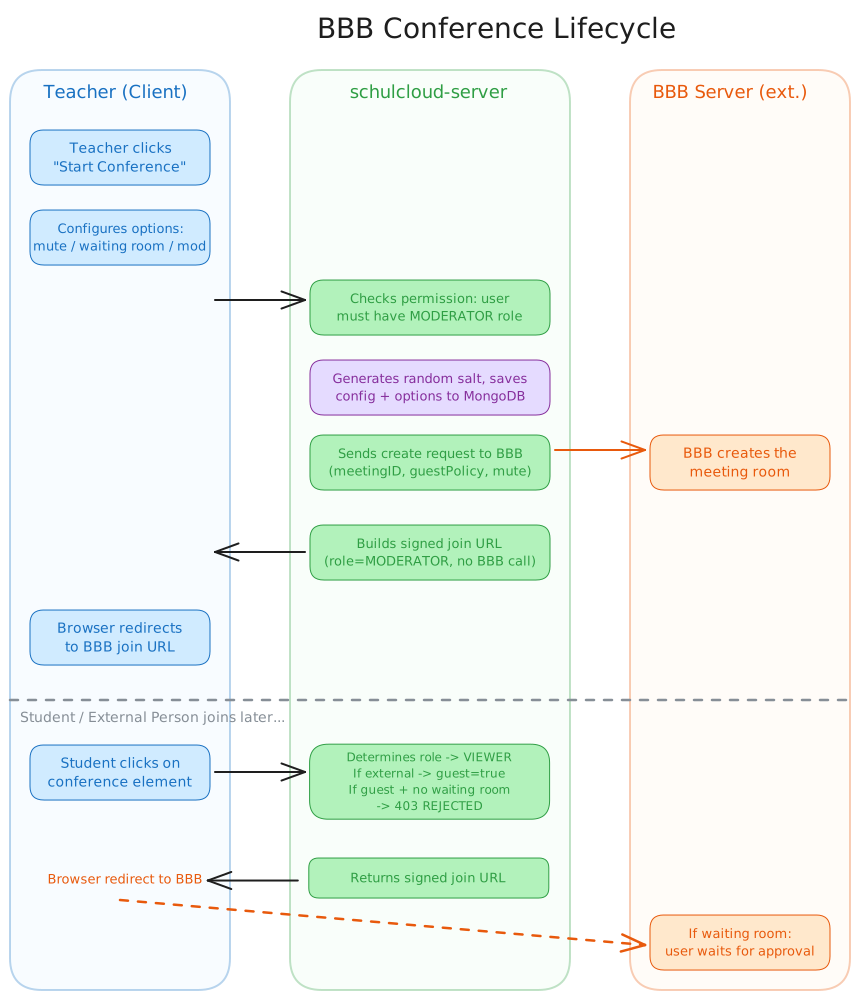
Sequence Flow
Communication Flow
Client                          Server                              BBB Server (ext.)
──────                          ──────                              ─────────────────
GET  .../info  ───────────────► checks BBB status ─── GET /api/getMeetingInfo ──► XML response
PUT  .../start {options} ─────► permission check → save to DB → POST /api/create ──► creates room
GET  .../join  ───────────────► determines role + guest → builds signed URL (no BBB call)
                ◄── { url } ──
window.open(url) ──────────────────────────────────────────────────────────────────► BBB Web UI
Key Server Internals
-
meetingID =
scopeId + salt(salt is a random 16-byte hex, regenerated on each start) -
Checksum: SHA-512 of
callName + queryParams + VIDEOCONFERENCE_SALT(env variable) -
BBB communication: HTTP GET/POST, responses are XML (parsed with
xml2json) -
join() does NOT call BBB – it only constructs a signed URL that the browser opens directly
-
Role mapping:
dBildungscloud Role BBB Role guest flag Teacher / RoomAdmin / BoardAdmin MODERATORfalse Student / RoomViewer / BoardReader/Editor VIEWERfalse ExternalPerson / TeamExpert VIEWERtrue -
Guest blocking: guest + no waiting room → 403
GUESTS_CANNOT_JOIN_CONFERENCE -
GuestPolicy: waiting room enabled →
guestPolicy=ASK_MODERATORsent to BBB create -
everybodyJoinsAsModerator: on join, if enabled AND user is not guest → role overridden to
MODERATOR -
allowModsToUnmuteUsers: always
truein the create config
Local Setup
Prerequisites
- BBB credentials HOST and SALT (from the password vault)
- Role permissions:
START_MEETING,JOIN_MEETING - School feature
videoconferencein thefeaturesarray of the school (DB: tableschools)
Server Env
FEATURE_VIDEOCONFERENCE_ENABLED=true
VIDEOCONFERENCE_HOST=https://bbb.staging.messenger.schule/bigbluebutton
VIDEOCONFERENCE_SALT=<from password vault>
FEATURE_COLUMN_BOARD_VIDEOCONFERENCE_ENABLED=true
Client Env
FEATURE_VIDEOCONFERENCE_ENABLED=true
Database Structure
When a video conference is created (e.g. a teacher activates the feature for a course), an object is created in the videoconferences table:
{
	"_id": "ObjectId(...)",
	"target": "<COURSE_ID>",
	"targetModel": "courses",
	"options": {
		"everyAttendeJoinsMuted": true,
		"everybodyJoinsAsModerator": false,
		"moderatorMustApproveJoinRequests": false
	},
	"salt": "<SALT_VALUE>"
}
For board elements, target refers to the board element and targetModel is "video-conference-elements".